Jonukas Skin

Help & Guide

Everything in one calm place, step by step and in plain language. Click the topic you need below.

1. Install the skin (takes 1 minute)

First close Football Manager 27. Then follow these 4 simple steps:

Works the same for Enhanced 0.6.4, Experimental 0.7.0 and the plain Base skin – all three use the same Windows installer (Install.bat). For Enhanced & Experimental it automatically sets up BepInEx, the plugin and all 4 looks.

  1. Close FM27

    Save your career and close Football Manager 27.

  2. Unpack the ZIP

    Right-click the downloaded ZIP file → click 'Extract All'. This creates a normal folder.

  3. Double-click 'Install.bat'

    Open the new folder and double-click Install.bat. A simple window opens: pick your look and click Install.

  4. Start FM27

    Start Football Manager 27. If you use Enhanced, the very first start can take up to 10 minutes — please just let it finish.

Prefer to install by hand? (Without the installer script)

1) Enhanced 0.6.4 & Experimental 0.7.0 (Windows)

Copy the contents of “enhanced\bepinex\” (BepInEx, dotnet, winhttp.dll, doorstop_config.ini) AND the contents of “enhanced\plugin\” straight into your FM27 game folder (not Documents!). On first launch the plugin automatically installs the 4 Enhanced skins into your user folder.

Windows: C:\Program Files (x86)\Steam\steamapps\common\Football Manager 27

Correct: …\Football Manager 27\winhttp.dll and …\Football Manager 27\BepInEx\plugins\JonukasSkinEnhanced\JonukasSkinEnhanced.dll


2) Plain Base skin only (no mod – Windows & Mac)

Simply copy the folders inside 'skins' into FM27's skins folder (create 'skins' if it does not exist yet). Then start FM27 and choose the look in Preferences.

Windows: Documents\Sports Interactive\Football Manager 27\skins
Mac: ~/Library/Application Support/Sports Interactive/Football Manager 27/skins

Correct: …\skins\jonukas-wood\skin.json

Most common mistake: the folder sits one level too deep (…\skins\Jonukas-Skins-FM27\skins\…) or inside the Steam game folder. If 'Reload Skin' is missing, simply run Install.bat / Install.command once.

2. Switch look or remove the skin

Switch look (Windows)

Save your career, close FM27, double-click 'Switch Skin.bat' in the unpacked folder, choose a new look, start FM27 again.

Switch look (Mac)

Save your career, restart FM27 and pick the new look in Preferences on the main menu before loading your save.

Remove completely

Close FM27 and double-click 'Uninstall.bat' (Windows) or 'Uninstall.command' (Mac). Everything resets cleanly — your saves are never touched.

Already deleted the download folder?

No problem: open FM27's skins folder (path above under 'By hand') and delete all folders starting with 'jonukas-'. For Enhanced, also remove the 'BepInEx' folder and 'winhttp.dll' from FM27's game folder.

3. Don't worry: if Windows or Mac shows a warning

Windows and macOS almost always show a warning for free fan scripts. That is normal: an official signing certificate costs hundreds of euros a year. The scripts are plain readable text, need no admin rights and send nothing to the internet.

Where to click on Windows:

  1. On the blue 'Windows protected your PC' screen, click 'More info'.
  2. Then click 'Run anyway' at the bottom.
  3. Windows 11 note (Enhanced): if 'Smart App Control' is turned on, Windows blocks Enhanced. You can either use the plain base skin without Enhanced — or turn it off under Windows Security › App & browser control (important Microsoft note: once turned off, it can only be turned back on by reinstalling Windows).

Where to click on Mac:

  1. If macOS says the file cannot be opened on the first double-click, click 'OK'.
  2. Open System Settings → Privacy & Security, scroll down and click 'Open Anyway'.
  3. Still blocked? Open the Terminal app, type 'bash ' (with a space), drag Install.command into the window and press Return.

4. All new screens explained simply (Enhanced)

Jonukas Skin Enhanced adds calm, redesigned screens — free for everyone. Here is what each screen does and how to get the most out of it:

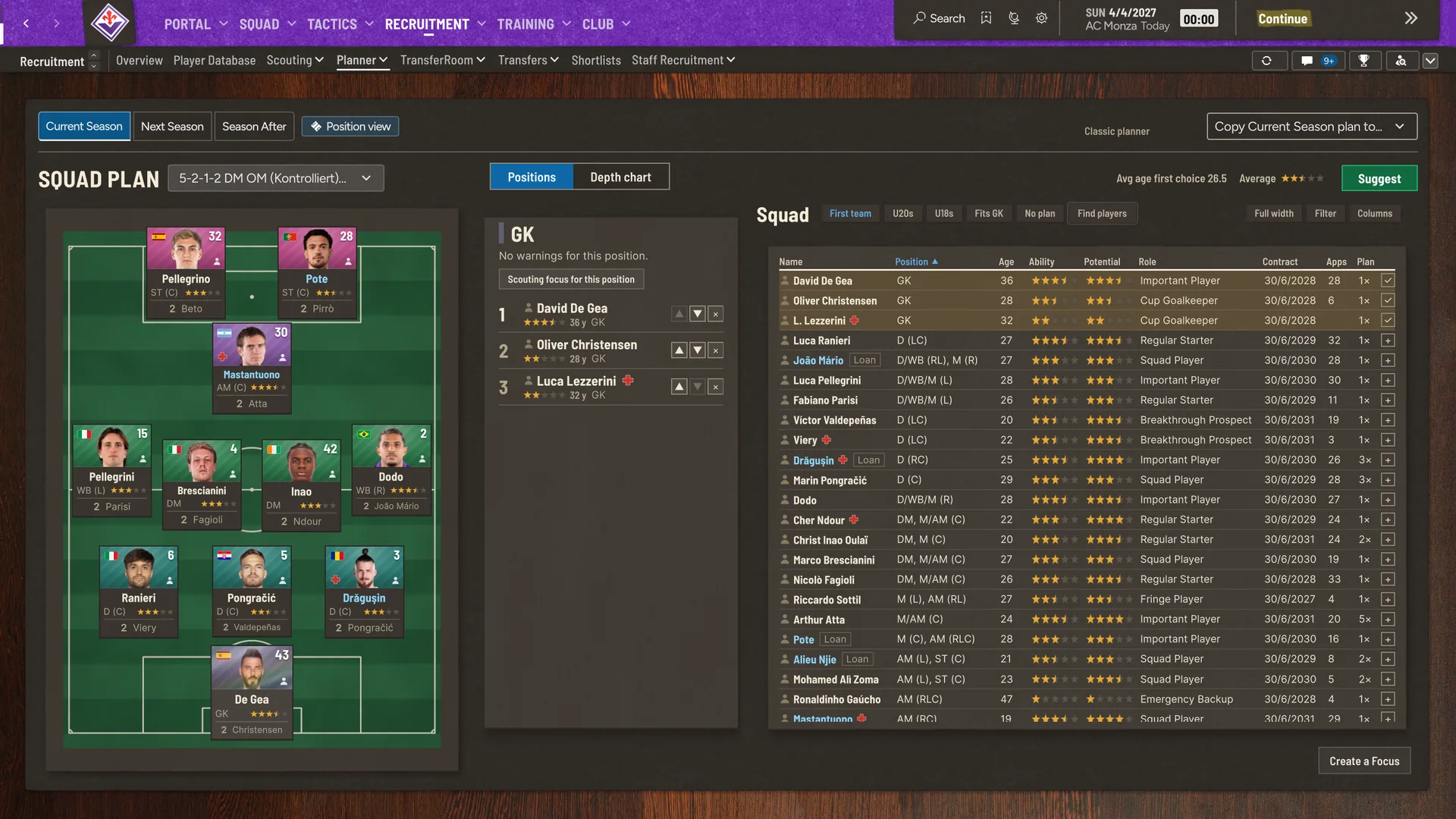
Squad Planner (Mini-Tutorial)

Your whole squad on one clean board — with player faces, squad depth and direct sync back to FM27.

  • Switch seasons at the top (this season, next season, season after) to spot expiring contracts and missing depth immediately.
  • On the pitch, every position shows real player faces and clear strength bars instead of cramped text lists.
  • Click a position or reorder players to adjust your depth chart — every change is saved straight into FM27's own squad planner.
  • Use the compact squad table on the right to check ages, contracts and depth in one glance.
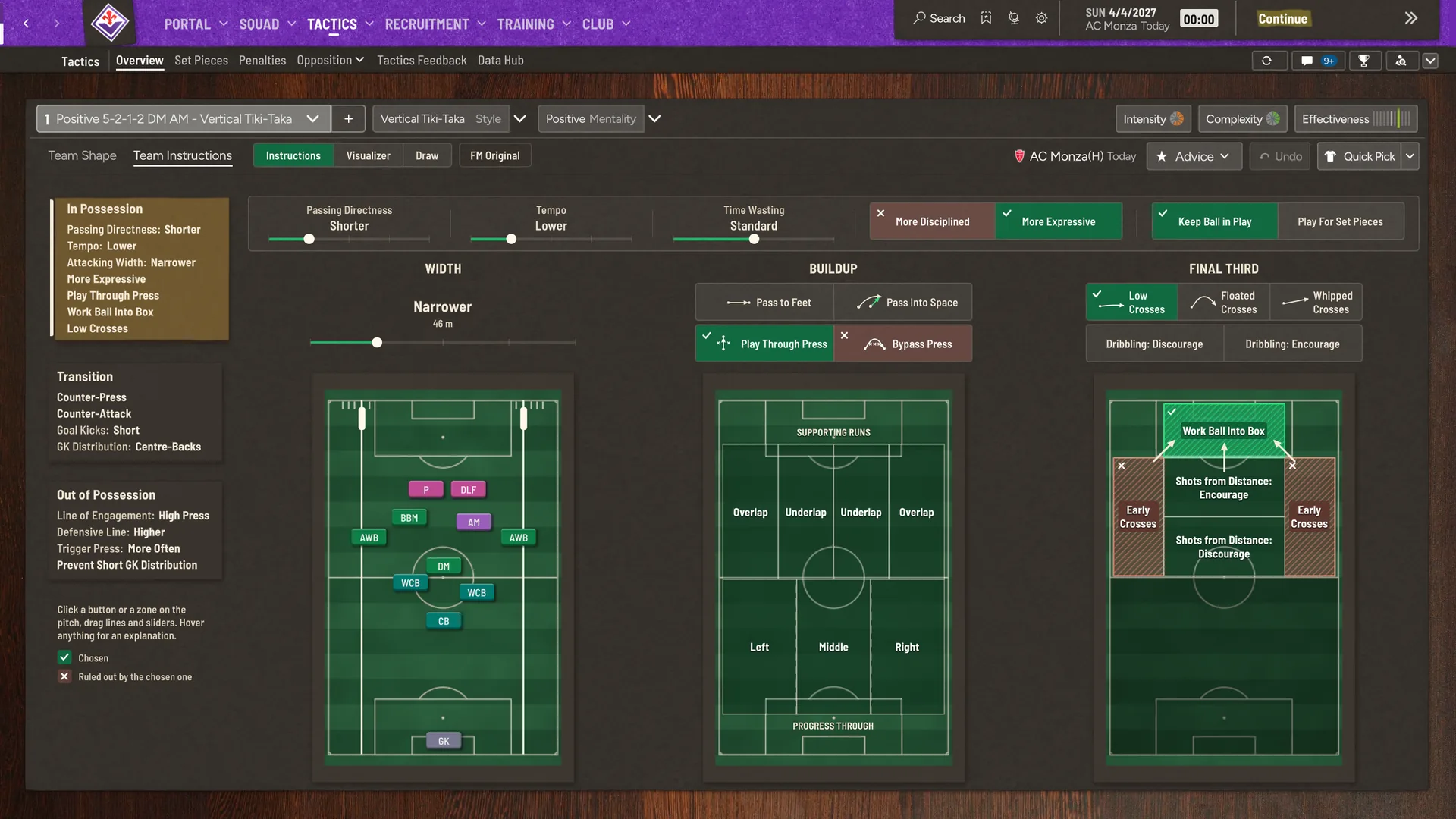
Team Instructions (like FM24)

All three match phases on a single sheet instead of separate tiles — works live during matches too.

  • See 'In Possession', 'In Transition' and 'Out of Possession' side by side on one screen.
  • Click instructions directly on the pitch — the graphic updates straight away.
  • No more hopping through four submenus during every match.

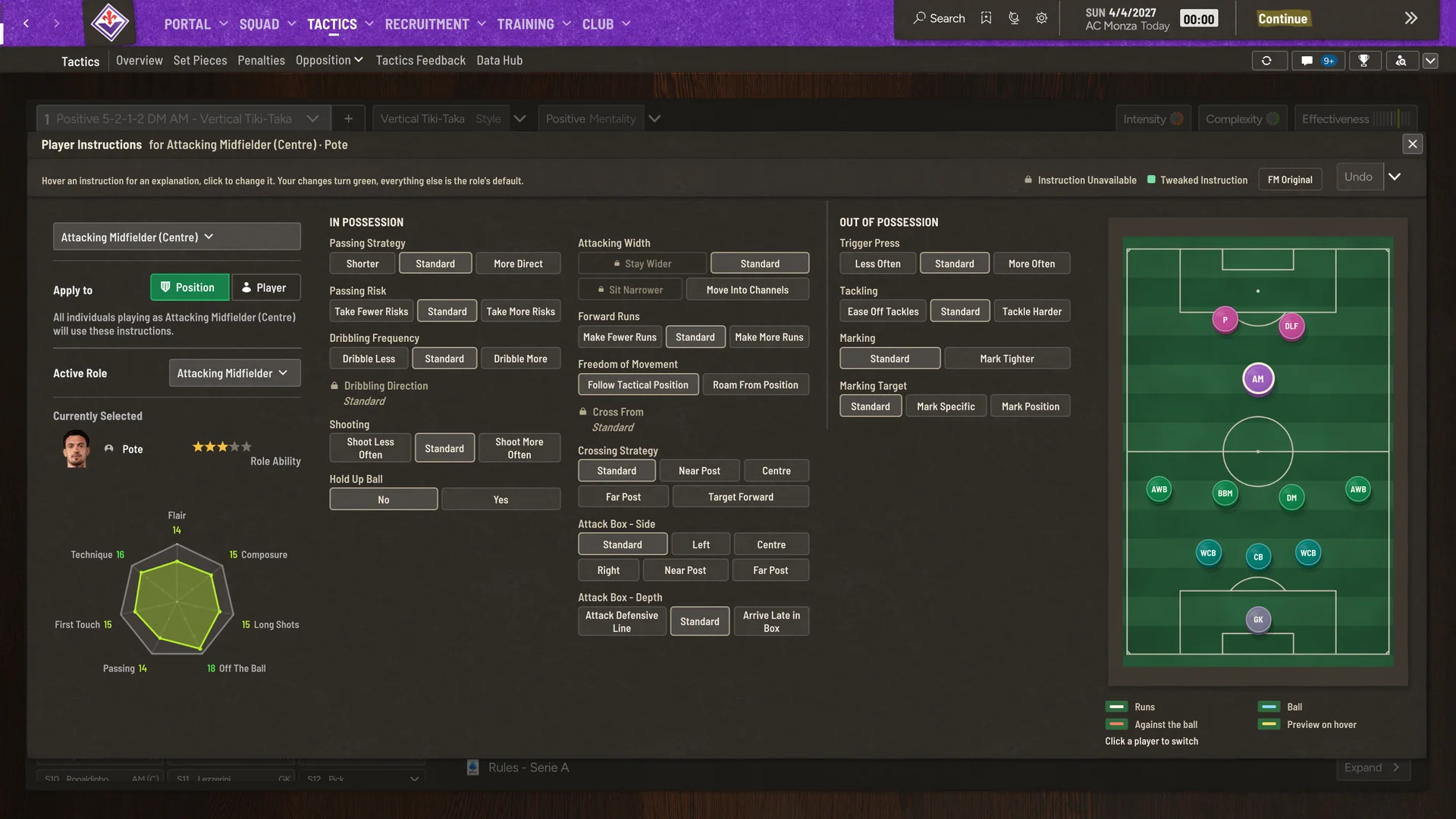
Player Instructions

Every instruction for a role in one tidy list, with a live pitch preview right beside it.

  • Click any player on your tactics board to open their instructions.
  • All available options sit neatly underneath each other.
  • The pitch next to the list shows immediately how runs and positioning change.

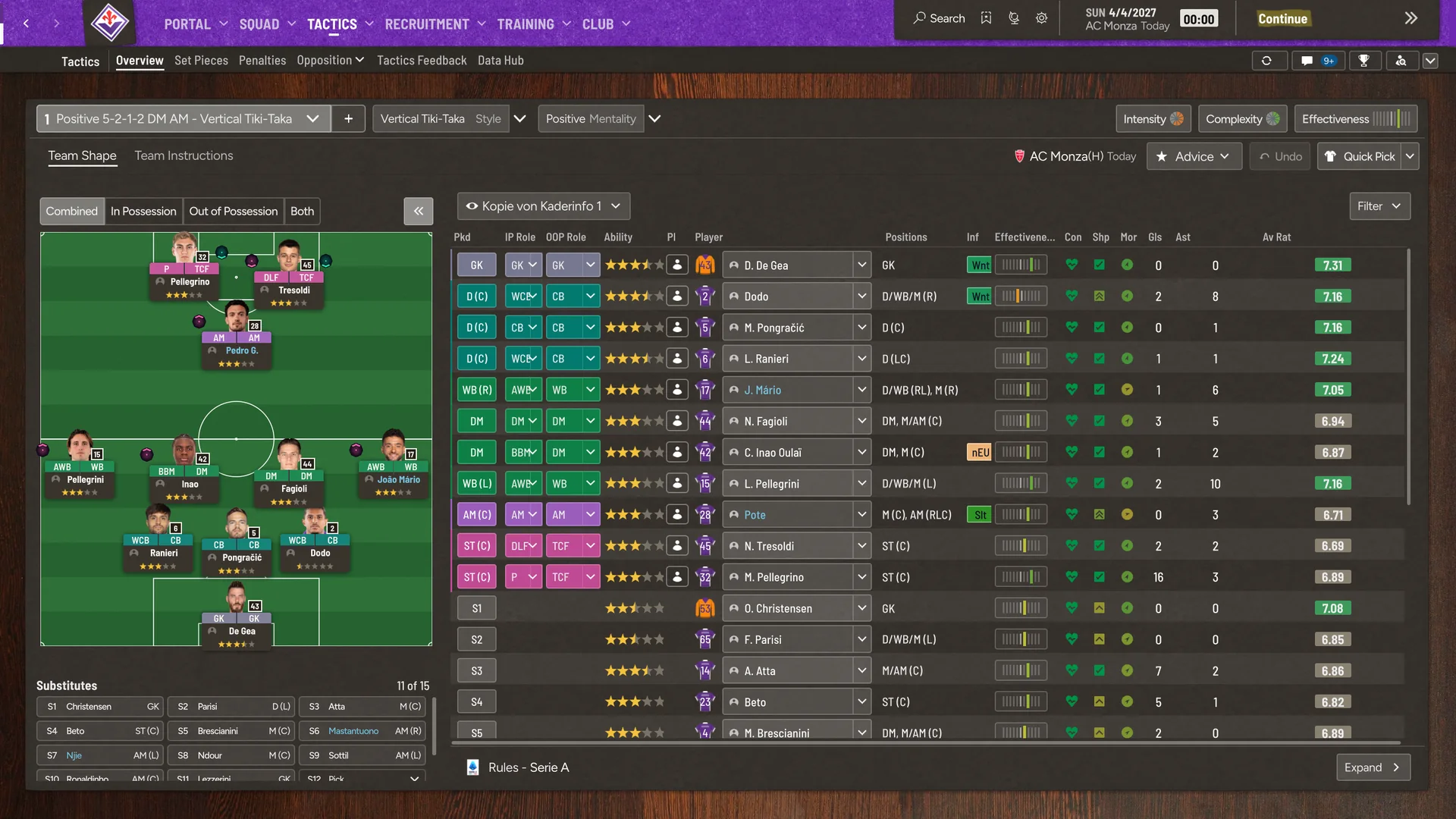
Tactics Board

Real player faces instead of plain shirts directly on the pitch.

  • Recognise your starting XI at a single glance — especially helpful with large squads and youth players.
  • Role, duty and sharpness sit cleanly right under each player.

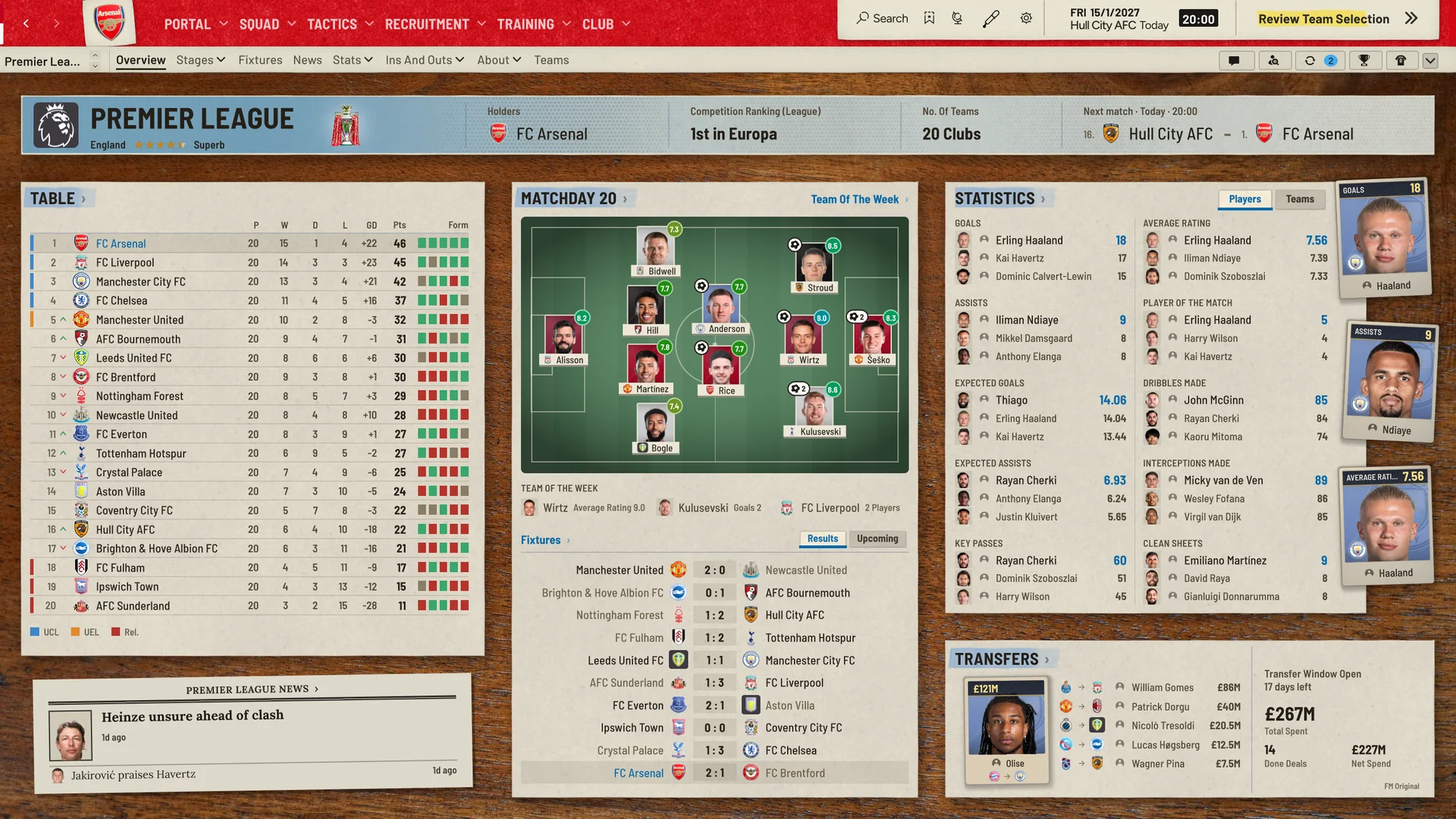
League Overview

Table with club badges and zones, Team of the Week, results, top stats and transfers on one calm page.

  • No constant tab-switching: all key league info sits cleanly side by side.
  • Promotion, European and relegation zones are clearly colour-coded.

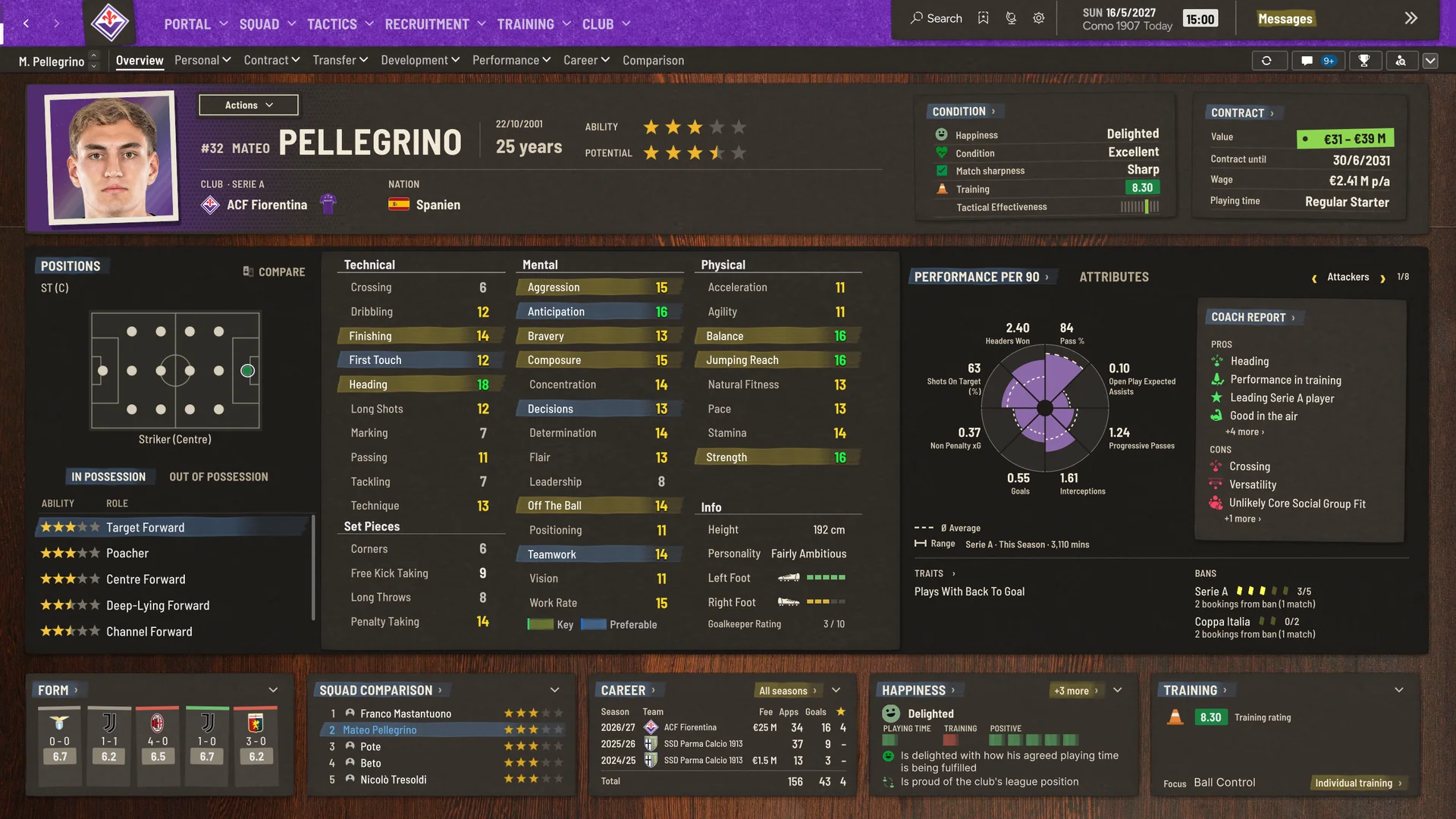
Player Profile

Clean header with portrait, contract and condition — plus per-90 performance chart, form, squad comparison and career.

  • Age, value, contract, morale and sharpness sit neatly side by side at the top.
  • Below, compare per-90 numbers straight against your squad and read the recent form curve at a glance.

5. Matching attribute colours in FM27 (recommended, 2 minutes)

FM27 stores attribute (1–20) and position colours in its own settings — skins cannot change them automatically. Set them once and FM27 keeps them for every save:

Open FM27 → cog icon → Preferences → Advanced → Display → Custom Colours → 'Edit Colours' → type the numbers as R / G / B.

LevelPreviewText (R G B)Background (R G B)BorderThreshold
World class19255 255 25525 122 6225 122 6219
Outstanding16255 255 25525 122 6225 122 6216
Very good16255 255 25525 122 62—16
Good1185 54 0241 205 132—11
Average928 26 22230 223 209—9
Solid628 26 22230 223 209—6
Fair487 80 63214 207 193—4
Unsuitable187 80 63214 207 193—1
Position ratingPreviewColour (R G B)
Awkward214 207 193
Makeshift226 212 186
Unconvincing236 214 160
Competent240 200 120
Accomplished224 165 38
Natural (good)124 198 139
Natural (ideal)28 130 67

6. Faces, club logos, kits & stadiums (optional)

For licensing reasons the skin includes no real photos or logos, but works seamlessly with all graphics packs. Free packs are available on sortitoutsi (free account required):

  1. Unpack the downloaded graphics pack.
  2. Place it into the 'graphics' folder right next to 'skins' (e.g. graphics\faces\cut-out). Avoid creating a double folder 'graphics\graphics'.
  3. Restart FM27 once — all pictures appear automatically.
  4. Tip if trophies show instead of league logos (FM27 bug): open the config.xml inside your Trophies folder in Notepad, Find & Replace 'pictures/comp/' with 'pictures/trophy/', save and restart FM27 — then both league logos and real trophies appear cleanly.

7. Something doesn't work or looks wrong?

Don't worry — you can't break your saves! The fastest way to solve any issue is 2 simple steps (please no DMs on Discord, Patreon or X):

  1. Step 1 (for Enhanced): run Check

    In the unpacked download folder, double-click 'Check.bat' (Windows) or 'Check.command' (Mac). It checks everything automatically and tells you in plain words if you can fix it yourself in 30 seconds.

  2. Step 2: report with a screenshot

    Click the blue button below (or directly in the Check window). Paste a screenshot with Ctrl+V, write one short sentence — done in 20 seconds.